People juggling e-books, old manuscripts, or a pile of faded receipts just want one reliable way to get a clean PDF out of plain text. That’s the whole point of a Text to PDF Converter.
Whether it’s a scanned page needing OCR, a stack of business reports, or just quick notes you typed on your phone, the goal is the same: automatically convert loose content into something shareable and properly formatted.
No installs, no waiting on a separate viewing software — just upload whatever you have, hit convert, and get a document back instantly, usually within a couple of seconds right there in your browser.
Text to PDF Converter
Turn Plain Text Into a Polished, Print-Ready PDF — Instantly, In Your Browser.
100% free · No sign-up · Nothing leaves your browser
Each image becomes its own page, sized to fit automatically.
Formatting choices like Bold, Italic, or Underline carry through the whole process, so a page of plain text doesn’t come out looking flatter than what you started with.
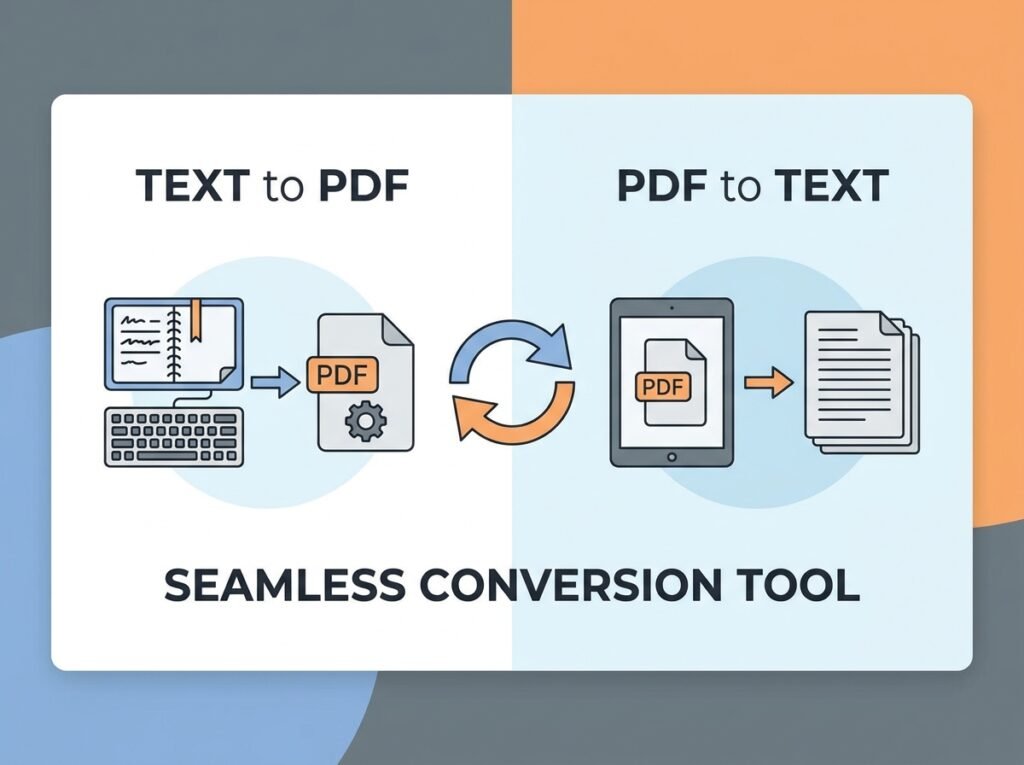
It works both directions too — turn text files into PDF documents, or run PDF To Text to pull editable text back out of something that was locked before. Either way, it stays entirely free.
How to Convert Text to PDF?
Getting started is simple: type or paste your content into the input box, then pick your output format. Most people expect friction here, but there isn’t any.
Already have a Txt file saved somewhere? Upload it directly instead of retyping everything by hand. The tool reads it straight away, no extra conversion tool required on your end.
Want structure first? Apply headings, bold key lines, or add italic emphasis before converting — these steps carry through cleanly rather than getting stripped out.
Once it looks right, hit the Convert to PDF button. Processing happens instantly, usually finishing within seconds — no spinner, no waiting around wondering if it’s stuck.
From there, download your file, copy the link, or drag it straight into a folder. Whether you started from a paste or an upload, the output stays consistent every time.
How to Use
Open the text area and start typing, or paste in something you’ve already written elsewhere. This is where most of the actual workflow happens before anything gets touched by the converter.
Add headings to break up long sections — a wall of unbroken plain text is harder to read than content with clear structure, even in a quick online tool.
Formatting controls sit right above the editor: apply bold, add underlining, adjust spacing as needed. Small edits like these carry directly into the final PDF document without extra effort.
Once you’re happy with it, press the Convert to PDF button and let the system generate a clean, print-ready file — no manual cleanup required afterward.
Grab the result with one click: download it and you’re finished. The whole thing takes a handful of simple steps, stays free, and works the same reliable way every time.
Simple Workflow
Every session starts the same: upload a saved document or paste raw content straight into the editor. Some people work from an image, others start from a plain TXT file.
The conversion tool doesn’t mind which path you take — select your source, let it process, then review the layout before finalizing anything, since a quick check saves rework later.
Pay attention to formatting and spacing at this stage. Catching an awkward line break early beats redoing the whole PDF after you’ve already moved on.
Happy with the preview? Hit download, and the finished PDF is yours to save wherever it’s needed — no accounts, no extra hoops to jump through.
In practice, the whole thing breaks down into 4 simple steps: input, adjust, extract, save. Each of those actions takes seconds, which is why people keep coming back to this workflow.
Features
What makes this genuinely useful isn’t just that it’s 100% Free — there’s no fee, no hidden subscription, and you don’t need an account or log in to get a finished file.
Real optimization shows up in the small controls: customization over a formatting pattern, the ability to italicize, align, or adjust indenting so nothing looks cramped or rushed.
Text controls go further than expected: bold, underline, drop in headings, then undo or redo freely while experimenting — nothing locks in until you’re satisfied.
Input flexibility matters too — use multiple input methods like copy, paste, drag and drop, or just type directly. Instant conversion means skipping excessive loading times almost entirely.
Processing takes mere seconds regardless of file size, and formatting preservation holds up across long paragraphs — no word limit, no cap on characters, with accuracy staying close to 100%.
Why should I use this Txt to PDF converter?
Among the unique features worth mentioning: everything runs over the open internet with zero fee, giving real conversion options without a paywall anywhere in sight.
Beyond being free, there’s genuine value in optimization options — controlling formatting and alignment before finalizing. Multiple inputs are supported, and instant processing means results show up right away.
What sets it apart long-term is layout conservation — structure survives the conversion. Add zero word limits, high precision output, and basic document protection, and this tool page earns repeat visits.
How do I convert text to PDF?
Just a few steps: open the online converter, insert your text — no strict requirement on formatting beforehand. Hit convert, wait for results, then download your finished PDF file right away.
How to convert text to PDF in mobile?
Open your web browser on mobile — no app search required. Load the converter, upload your Txt file from storage, tap the convert button, and the output PDF file is ready for access on screen, with processing wrapping up in seconds.
Can I use it on mobile?
Yes — most mobile browsers handle it fine. Upload small files, use the built-in editor, then download the result. For long documents, large PDFs, or heavy OCR work, though, a desktop browser with more screen space makes file handling noticeably smoother.
How to convert text messages to PDF in Android?
A handful of steps: copy your text messages from the thread, insert them into the tool, hit convert, then use the online converter‘s convert to PDF button. Download the finished PDF — your copied messages now sit in one file.
How do I convert copied text into PDF?
Paste your copied text into the input box, click the convert button, and the PDF file generates in under a minute. Processing happens instantly, and the tool will generate clean output ready to save.
What is the purpose of converting TXT to PDF files?
Plain TXT files get converted into proper PDFs mainly to retain original formatting across documents. This matters most when sharing — recipients can view the exact same format regardless of device, making cross-platform display far more predictable.
Is there a free text to PDF Converter?
Yes — this text to PDF converter is genuinely unlimited-to-use, not a limited trial disguised as a free tool. Core features cover everyday tasks without restriction, and account creation stays entirely optional if you’d rather skip signing up.
Is it really free to use?
The core conversion tools cost nothing for standard tasks — paste or upload your text, then create finished PDF files right away. Even extract work like OCR on scanned PDFs or image files stays free. Account creation remains optional, mainly there for dashboard access, while pro features exist for those who need more.
Are my files secure?
Every document task relies on temporary file handling — nothing sits around longer than needed. Whether it happens in the browser or through server tools, the process treats each file the same: prepare the PDF, generate the text result, then clear it. Even sensitive documents follow this same privacy policy.
What is the difference between Text to PDF and PDF to Text?
Text to PDF takes written or pasted content and produces a clean, downloadable PDF. PDF to Text runs the opposite way — pulling editable text back out, even from scanned content, turning locked words into something selectable again through a real text layer.
Are there any file size limits?
Yes — practical file size limits exist mainly to stop very large files from causing things to slow down mid-upload. Heavier processing, especially PDF to Text on searchable PDFs, works best under roughly 10MB. It helps to split a bulky file into smaller pieces for smooth results.
Before You Upload
Getting a better result starts before you touch the tool — check that your file actually matches the source file you meant to send. Blurry or angled shots make even good OCR struggle.
For uploaded files running through recognition, quality depends on what’s fed in. Selectable text converts cleanly, while scanned pages built from screenshots or a quick photo need a sharper source to read correctly.
This same system also handles Markdown to PDF, PDF to Markdown, CSV to PDF, WebP to PDF, and Image to PDF — all routed through the same temporary server processing, nothing stored longer than needed.
Keep the shot clear and the browser window steady. Upright images with strong contrast read far better than something tilted or half-shadowed.
Before uploading, crop tightly, select the relevant text area, and remove stray borders or clutter. Avoid anything folded, shadowed, or shot in low-light — these reduce accuracy, especially with blurry letters or handwriting.
Where You Can Use Our PDF and Image Extraction Tools?
Students lean on this for class notes and book pages — pulling clean, editable content out of a photo mid-lecture saves real time during study work.
In an office, professionals deal with business documents constantly — invoices, reports, and records pile up fast. Feeding scanned pages and images through this tool keeps paperwork searchable instead of buried in a drawer.
Writers and content creators often need to revive old article drafts or dig through research documents. Rather than retyping by hand, they extract the relevant section and reuse it directly.
Everyday life produces its own paperwork too — personal records, daily documents, printed forms, or a page of handwritten notes needing digitizing. Freelancers handling billing run into this constantly.
Beyond individuals, old books and stacks of paper headed for archiving pass through the same process. Researchers and scholars rely on it too, pulling text from web snippets instead of retyping whole passages.
Security and Trust
Handling documents responsibly means staying privacy aware at every stage — whether it’s invoices, receipts, personal notes, or signed contracts passing through the system.
Every file conversion and text extraction job relies on temporary processing rather than permanent storage, whether it runs through server tools or stays on browser based processing.
That same care extends across formats: CSV, Markdown, WebP, and other tools all follow identical policies and limits. Anyone curious about supported formats or privacy details can check those specifics directly.
Trust also comes down to editorial standards — clear correction policies and honest OCR expectations, since results depend on scan clarity. Poor text contrast, awkward page rotation, or messy typed content all affect accuracy.
FAQ
Got Questions? We’ve Got Answers.
A handful of steps get this done: copy your text messages from the thread, insert them into the tool, hit convert, then use the online converter‘s convert to PDF button. Download the finished PDF — your copied messages now sit in one shareable file.
Paste your copied text into the input box, click the convert button, and the PDF file generates in under a minute. Processing happens instantly, and the tool will generate a clean output ready to save.
Plain TXT files get converted into proper PDFs mainly to retain original formatting across different documents. This matters most when sharing files — recipients can view the exact same format regardless of their device, which makes cross-platform display far more predictable than sending raw text.
Yes — this text to PDF converter is genuinely unlimited-to-use, not a limited trial disguised as a free tool. Core features cover everyday tasks without restriction, and account creation stays entirely optional if you’d rather skip signing up altogether.
The core conversion tools cost nothing for standard tasks — paste or upload your text, then create finished PDF files right away. Even extract work like pulling text from normal PDFs, running OCR on scanned PDFs, or handling image files stays free. Account creation remains optional, mainly there for dashboard access if you want it, while pro features exist for those who need more.
Every document task relies on temporary file handling — nothing sits around longer than it needs to. Whether work happens in the browser or through server tools, the process treats each file the same way: prepare the PDF, generate the text result, then clear it. Even sensitive documents follow this same privacy policy, since this online tool was never designed to hold onto anything past the session.
Text to PDF takes written or pasted content — imported text typed fresh or dropped in — and produces a clean, downloadable PDF with fixed layout. PDF to Text runs the opposite direction: it pulls editable text back out, even from scanned content, turning locked words into something selectable again. The difference matters most with OCR, where visible text sits as a flat image until a proper text layer gives you an actual cursor to work with.
Yes, practical file size limits exist mainly to stop very large files from causing things to slow down mid-upload. Heavier processing — especially PDF to Text jobs on searchable PDFs — works best under roughly 10MB. OCR in particular strains browser tools more than plain conversion, so it helps to split a bulky file into smaller pieces first for smooth results.
Leave a Reply